Your phone is the terminal. Stream a Linux/Mac desktop to an iPhone over WebRTC through NAT, with audio and input. Open source, single binaries.
network computer
Your phone is the terminal. The computer is somewhere else.
network-computer streams a Linux, macOS or (later) Windows desktop to an iPhone with audio, and sends the phone's keyboard, mouse and touch back. Plug the phone into a TV or AirPlay it to an Apple TV and it is a desk. Everything is open source, runs as single static binaries, and works when both ends are behind NAT.
Status: working on a test desk, not yet 1.0. A cloud Linux desktop is used from a Mac browser and an iPhone: sound both ways, responsive input, clipboard and files. See docs/PLAN.md for the design, docs/DESKTOP.md for what comes next on the desktop, and docs/SPIKE.md for measurements.
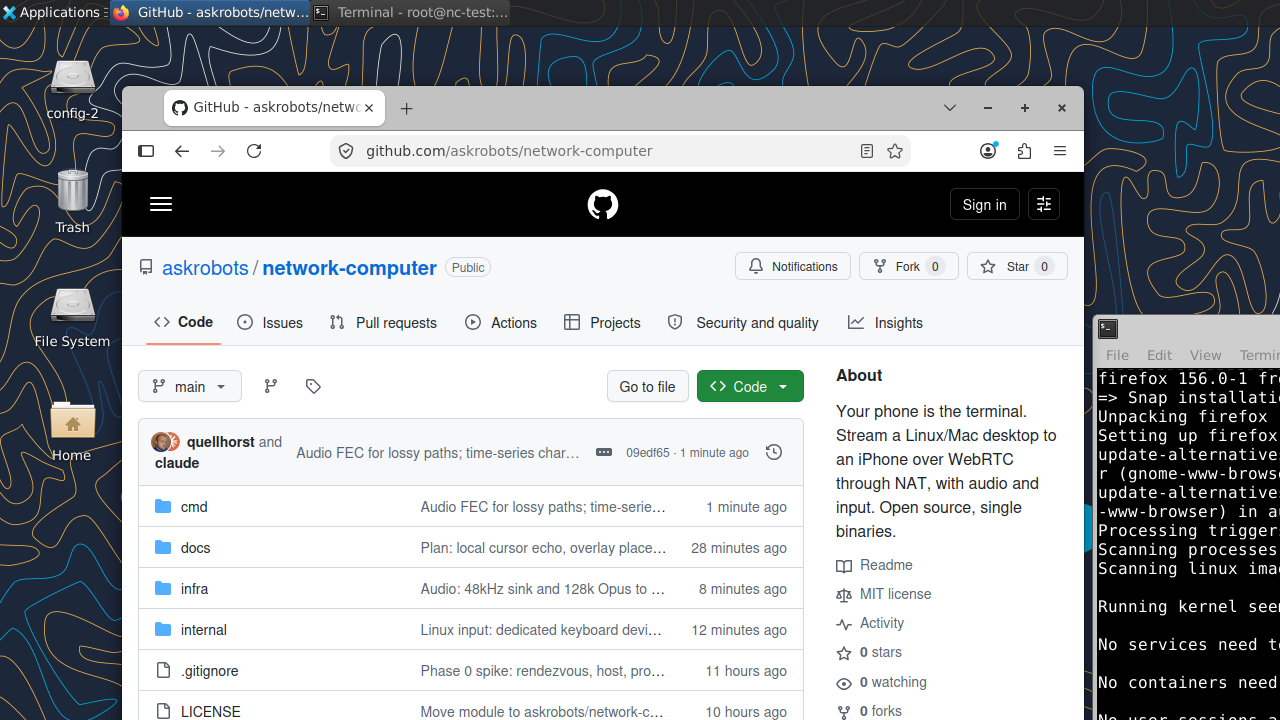
A cloud Linux desktop streamed to a Mac browser through NAT, browsing this very repo. 1280×720, direct path, ~45 ms, with audio.
What works
- Picture: H.264 over WebRTC, direct through NAT when hole punching works and via
the built-in TURN relay when it does not. The desktop resizes to your window (or a preset), with a UI scale from 100 to 200%.
- Sound both ways: the desktop's audio plays on your device, and your microphone (the
browser's or the phone's) is a microphone on the desktop, for calls, recording and voice apps. Pick the mic in the page and watch its level.
- Keyboard and mouse that feel local: any layout (QWERTY, Dvorak, Colemak... are
translated in the page, so the desk stays US), UK/German/French/Spanish, and on a Mac ⌘ acts as Ctrl on the desk, so ⌘C, ⌘V and ⌘Z do what your fingers expect. On an iPad or phone with no mouse, see Touch devices.
- Clipboard both ways (text): ⌘/Ctrl+V pastes your device's clipboard on the desk;
copying on the desk comes back to your device. The 📋↑ and 📋↓ buttons move it without a keystroke, so the desk's right-click → Paste works too.
- Files both ways: drop files on the window and they land on the desk's Desktop. On
the desk, right-click a file → Send to my device (or nc-send FILE) and a 📥 button appears in the page to save it.
- Today on the dashboard: the weather where you are, the newest headlines from your
feeds, and internet radio heard on your device (the Today and Radio icons, or voice: "play some jazz"). Each is on by default and switched off in ~/.config/nc/dashboard.env.
- Live streams in: a phone camera, OBS or ffmpeg streams to the desk over SRT (encrypted,
with a passphrase), to watch, record for 48 hours, relay to Twitch or YouTube, and for voice to look at or listen to (nc-stream; off until you turn it on).
- Your camera as the desk's webcam: tap 📷 (on a phone it's in ⋯ until it's on) and the
desk has a webcam, network-computer camera, for a video call in the desk's browser or any app there. The camera is only attached while it's on, and the button stays red.
- Print on the device you're using: the desk's default printer is My device. File →
Print in any app (or right-click → Print on my device, or ask voice to print a file) opens the print dialog of the phone, iPad, Mac or browser you're connected from, so it prints on your own printer (AirPrint on iOS). Nobody connected: the PDF is kept in ~/Documents/Printed.
- Your object server files as a folder:
~/Objectson the desk is your files in the
DBBASIC object server, mounted over its WebDAV, so every app and the terminal use them as ordinary files. See docs/DESKTOP.md.
- Search, launch and talk: Alt+Space (or 🔍) searches open windows, apps and files.
The 🎙️ button talks to the desk and can operate it: arrange windows, click what it sees, move files, read web pages; risky steps get a second AI check, and deleting asks you first. nc-desk is the computer controller underneath, usable from any script. Voice runs through the DBBASIC object server installed on the desk, with your own API keys kept on the desk.
- Secure by default with a domain: a real Let's Encrypt certificate, a password
exchanged for a short-lived token, a host PIN typed once and then remembered through pairing, and relay credentials minted per session.
- Hot desking: the computer is disposable, your desk is not. A small volume keeps
your settings, documents, keys and pairing; destroy the computer to stop paying, bring up another (any size) later, and sit down where you left off. See docs/DESKS.md.
- Desks for other people:
infra/people.sh new alicethenup alicebuilds someone
their own desk with their time zone, apps, voice style and keys, and welcome alice prints the message to send them. See docs/DESKS.md.
- One-command desk on DigitalOcean:
infra/droplet.sh upbuilds a provisioned
Ubuntu desktop (Xfce, Firefox, VLC, Audacity, the tools above) with its DNS name, checked by 74 automated checks; infra/droplet.sh down destroys it and keeps the desk.
Clients
| Client | Where | Status |
|---|---|---|
| Browser | Built into nc-rendezvous: any modern browser, including Safari on iPhone and iPad | Everything above |
| Flutter app | iPhone, iPad, Android, macOS, Windows, Linux | Picture, sound, mic, touch gestures and keyboard, pairing, voice button and transcript, search bar, screen size, clipboard and files both ways |
nc-probe | Command line | Test client: path, frame rate, audio timing, clipboard and file transfer |
Touch devices (no mouse)
A desktop wants double-clicks, right-clicks and drags; a finger has none of them. The app turns touch into those (in lib/touch_pad.dart):
| On the glass | On the desk |
|---|---|
| Tap | Left click, where the finger is |
| Double tap | Double click (open a file or folder) |
| Touch and hold, let go | Right click (context menu) |
| Two-finger tap | Right click too |
| Touch and hold, then move | Drag: move a window, a file, or select text |
| One-finger drag | Move the pointer, like a trackpad |
| Two-finger drag | Scroll |
Positions are measured against the desk's picture, not the screen around it, so a tap lands where you touched even with black bars around the picture.
Typing: the ⌨ button brings up the device's own keyboard (the iOS keyboard on an iPad or iPhone) and, above it, a bar with the keys it lacks: esc, tab, ctrl, alt, super, shift, the arrows, home/end, page up/down, delete, and fn for F1–F12 (htop in a terminal is a good test). ctrl, alt, super and shift apply to the next key and then let go, so tap ctrl then c to copy; hold one down on the bar to keep it on until you tap it again. abc brings the keyboard back if you hid it. Characters go as the US keys that type them (the desk stays US); ones a US keyboard can't type, like é or emoji, are skipped: paste them with 📋↑ instead.
A mouse, trackpad or keyboard attached to the iPad works as it would on a computer, and the voice button often beats all of the above: "open my downloads folder".
How it works
 phone / browser                                     Linux / Mac / Windows host
 ┌──────────────────┐   WebRTC over UDP, direct       ┌──────────────────────┐
 │ video decode     │◄═══════════════════════════════►│ nc-host              │
 │ audio out        │   when hole punching works      │  ffmpeg capture      │
 │ keyboard, mouse  │                                 │  H.264 hw encode     │
 └────────┬─────────┘                                 │  input injection     │
          │                                           └──────────┬───────────┘
          │  signaling (WebSocket) + STUN + TURN relay fallback   │
          └───────────────┐                       ┌──────────────┘
                          ▼                       ▼
                    ┌──────────────────────────────────┐
                    │ nc-rendezvous  (one binary, one   │
                    │ VPS with a public IP, no database)│
                    └──────────────────────────────────┘
Three programs, all in Go:
| Binary | What it does |
|---|---|
nc-rendezvous | Signaling over WebSocket, STUN and TURN on one UDP port, serves the browser client. Runs on any box with a public IP. |
nc-host | Runs on the desktop you want to reach. Captures the screen and sound with ffmpeg, encodes H.264, streams over WebRTC, injects input, plays your microphone, and syncs clipboard and files. |
nc-probe | Headless test client. Tells you whether a path is direct or relayed, what frame rate and audio timing arrive, and exercises the mic, screen size, clipboard and file transfer. |
Requirements
- Go 1.27 or newer to build (go.mod pins it; an older Go downloads the toolchain automatically).
ffmpegon the host machine (brew install ffmpeg,apt install ffmpeg).- On macOS, the terminal running
nc-hostneeds Accessibility permission to inject
input (System Settings, Privacy & Security, Accessibility). Use -dry-run to skip that.
- On Linux the host needs X11 (or XWayland) for capture, and write access to
/dev/uinputfor input (root, or a udev rule for theinputgroup).
Quick start (everything on one machine)
git clone https://github.com/askrobots/network-computer
cd network-computer
go build -o bin/ ./cmd/...

# 1. rendezvous. It prints a generated password; or set one.
NC_PASSWORD=change-me ./bin/nc-rendezvous -http :8765 -turn :3478

# 2. host, in another terminal. It prints a 6-digit PIN; or set one.
NC_PASSWORD=change-me ./bin/nc-host -rendezvous http://127.0.0.1:8765 -name mybox

# 3. open http://127.0.0.1:8765/ in a browser, log in with user "nc" and the password,
#    pick the host, type its PIN, connect. Click the video to grab mouse and keyboard;
#    shift+esc releases.

# or test headlessly:
NC_PASSWORD=change-me NC_PIN=<pin> ./bin/nc-probe -rendezvous http://127.0.0.1:8765
Across the internet
Recommended: give it a domain. With a host name whose DNS is on DigitalOcean, one command builds the server, points the name at it, and brings it up with a real Let's Encrypt certificate:
NC_DOMAIN=nc.example.com infra/create-droplet.sh
# ... done. rendezvous: https://nc.example.com
Everyone then opens https://nc.example.com: no fingerprints, no certificate warnings, and the microphone works in browsers, which only allow it on HTTPS pages. Rebuilds get a new IP; the scripts move the DNS record with it. Why and how: docs/DOMAIN.md.
infra/ also scripts Vultr, Linode and AWS, or provisions any Ubuntu box you already have with infra/provision-host.sh <ip>. See infra/README.md.
Manual path
Open TCP 443 and 80 (or 8765 without TLS), UDP 3478, and UDP 49152 to 65535 for relayed sessions.
# on the VPS, with a domain whose A record points here (certificate fetched automatically):
NC_PASSWORD=change-me ./bin/nc-rendezvous -turn :3478 -public-ip 203.0.113.5 \
  -acme-domain nc.example.com -local 127.0.0.1:8765

# no domain: plain HTTP (trusted LAN only; browsers will not allow the microphone)
NC_PASSWORD=change-me ./bin/nc-rendezvous -http :8765 -turn :3478 -public-ip 203.0.113.5

# no domain but over the internet: self-signed, and clients pin its fingerprint
NC_PASSWORD=change-me ./bin/nc-rendezvous -http :8765 -turn :3478 -public-ip 203.0.113.5 -mode secure
#   ...   sha256 6381268cf1b96418c9c3...
NC_TLS_FP=6381268c... NC_PASSWORD=change-me ./bin/nc-host -rendezvous https://203.0.113.5:8765 -name mybox

# on the desktop behind NAT
NC_PASSWORD=change-me ./bin/nc-host -rendezvous https://nc.example.com -name mybox

# from anywhere: does the path go direct or through the relay?
NC_PASSWORD=change-me NC_PIN=<pin> ./bin/nc-probe -rendezvous https://nc.example.com
NC_PASSWORD=change-me NC_PIN=<pin> ./bin/nc-probe -rendezvous https://nc.example.com -relay   # force TURN
Authentication
Two layers, both simple on purpose:
- Rendezvous password, exchanged once for a token. The page itself is public, so
no browser login dialog ever appears. A client POSTs its username and password to /auth once and gets a 12-hour token, then uses Authorization: Bearer <token> on /config and /hosts, and ?token=<token> on the WebSocket (browsers cannot set WebSocket headers). Its own connect form is the only place credentials are typed. Headless clients (nc-host, nc-probe) may still use HTTP Basic instead. Set the password with -password or NC_PASSWORD; if unset a random one is generated and printed at startup. The username defaults to nc (-user, NC_USER).
- Host PIN, typed once. Each host has a 6-digit PIN (
-pinorNC_PIN, generated
if unset). The first connection must present it; the host then returns a signed pairing token that the client keeps and sends instead, so the PIN is a one-time step. Two people sharing one rendezvous still cannot drive each other's machines. nc-host -reset-pairings revokes every paired client.
Media is encrypted by WebRTC (DTLS-SRTP) whether or not the rendezvous uses TLS. Over plain HTTP the signaling (credentials, PIN, SDP) is in the clear, which is fine on a trusted LAN and not for the open internet — run with -acme-domain or -tls-cert there. /config reports mode as secure or insecure so clients can show which they are in. -mode auto|secure|insecure forces the posture: secure refuses to run without TLS (making a self-signed cert if you gave none), insecure refuses TLS flags. TURN relay credentials are minted per /config request and expire after 12 hours, so a leaked one goes stale on its own. See docs/SECURITY.md.
Host options worth knowing
-size 1920x1080     output resolution (default; "native" disables scaling)
-fps 60             capture rate
-bitrate 8M         video bitrate cap
-encoder            h264_videotoolbox (mac), libx264 (default elsewhere), h264_vaapi, h264_nvenc, ...
-ffmpeg-extra       extra ffmpeg args, e.g. VA-API: -ffmpeg-extra "-vaapi_device /dev/dri/renderD128 -vf format=nv12,hwupload"
-ffmpeg-args        replace the whole ffmpeg command; must end with "-f h264 pipe:1"
-audio-device       stream audio from this device (mac: avfoundation index, needs a loopback such as BlackHole; linux: a pulse source)
-mic-device         play the client's microphone here (linux: a pulse sink such as nc-mic; mac: an output such as BlackHole)
-files-dir          save files dropped on the client here, e.g. ~/Desktop ('' = refuse them)
-send-socket        unix socket for nc-send ("Send to my device") ('' = off)
-state-dir          where the pairing secret lives (on a desk: the desk volume)
-display 1          capture a different screen
-dry-run            log input instead of injecting it
Known limitations
- One ffmpeg per session; a second client on a macOS host will fail. Shared capture is next.
- No keyframe on demand; packet loss can show artifacts for up to 2 seconds.
- Linux hosts are the tested path. macOS hosts work (CGEvent input, pbcopy clipboard);
Windows input (SendInput) is written but untested, and Windows hosts have no clipboard or file sync yet.
- Clipboard is text only. Folders must be zipped before sending.
- In Safari, text copied on the desk from a menu reaches your Mac at your next click or
key press in the page (the browser only lets pages write the clipboard then).
- System audio on a macOS host needs a loopback device.
Running it as an agent
A host is a real machine running nc-host, so an assistant with shell or input access can operate it: run commands, install software, and drive the GUI while reading the screen back. See docs/AGENT.md.
Layout
cmd/nc-rendezvous/   signaling, STUN/TURN, embedded web client
cmd/nc-host/         capture, encode, WebRTC, input, mic, clipboard, files, pairing
cmd/nc-probe/        headless test client
internal/proto/      signaling and input message types
internal/input/      per-OS input injection
internal/oggopus/    Opus packet reader for audio pacing
internal/tlspin/     certificate pinning for self-signed rendezvous
provision/           turns a fresh Ubuntu box into a desk (apply.sh, verify.sh)
infra/               create, rebuild and destroy desks on DigitalOcean and others
docs/                plan, desks, desktop, security, spike results
License
MIT. See LICENSE.