Floating Shelf: a macOS shelf at the edge of the screen for holding files, images and text while you move between apps.
Floating Shelf
A macOS utility that provides a temporary "shelf" for dragging and storing files, images, and text. Perfect for holding items while you work with multiple windows and apps.
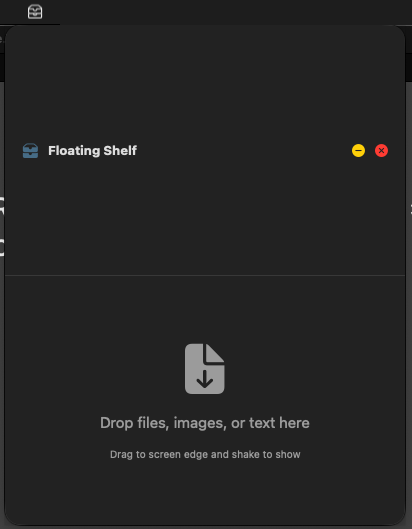
Features
- Edge Detection: Drag items to the edge of your screen to automatically reveal the floating shelf
- Menu Bar Access: Click the shelf icon in your menu bar to toggle the window
- Drag In & Out: Drop files/images onto the shelf, then drag them back out to upload or use elsewhere
- Upload Support: Drag images from the shelf directly to browser upload fields
- Quick Copy: Double-click any item to copy it to your clipboard
- File Preview: See thumbnails of images and file icons
- Context Menu: Right-click items for more options (Open, Show in Finder, Remove)
- Always Available: Floats above all windows and stays visible across all spaces
How to Use
- Show the Shelf:
- Drag any file/image/link to the edge of your screen (left, right, or top edge)
- The shelf will automatically appear when you drag content near the edge
- OR click the shelf icon in your menu bar to toggle it manually
- Add Items:
- Drag and drop files, images, or text onto the shelf window
- Works with images from Safari, Firefox, Chrome, and other browsers
- Use Items:
- Drag items from the shelf to other apps (works with browser upload fields!)
- Double-click to copy to clipboard
- Right-click for more options (Open, Show in Finder, etc.)
- Clear Items:
- Click the trash icon to clear all items
- Right-click individual items and select "Remove"
Building from Source
Requirements
- macOS 13.0 (Ventura) or later
- Xcode 14.0 or later
- Swift 5.0 or later
Build Instructions
- Clone or download this repository
- Open the project:
   cd dbbasic-floating-shelf
open FloatingShelf.xcodeproj- Build and run:
- Select "FloatingShelf" scheme in Xcode
- Press
Cmd + Rto build and run - Or use Product > Build (Cmd + B)
Alternative: Build from Command Line
xcodebuild -project FloatingShelf.xcodeproj -scheme FloatingShelf -configuration Release buildThe built app will be located at:
build/Release/FloatingShelf.appInstallation
- Build the app using the instructions above
- Copy
FloatingShelf.appto your/Applicationsfolder - Launch the app
- The shelf icon will appear in your menu bar
Note on Permissions
This app uses invisible edge windows to detect drag operations. No special accessibility permissions are required!
Technical Details
- Built with Swift and SwiftUI
- Uses invisible edge windows for drag detection
- Implements native drag-and-drop APIs
- Borderless floating window with blur effect
- Runs as menu bar app (no dock icon)
Architecture
FloatingShelfApp.swift: Main app entry point and edge window setupEdgeDetectorWindow.swift: Invisible edge windows for drag detectionFloatingShelfWindow.swift: Window management and positioningShelfViewController.swift: Data management and drag-drop handlingShelfItem.swift: Item model with clipboard supportShelfView.swift: SwiftUI interface and visual design
License
MIT License - see LICENSE file for details.
Free for personal and commercial use. Created for dbbasic.com
Future Ideas
Potential Merge with Paste History
This shelf app is essentially a visual, spatial representation of the macOS pasteboard. It could be merged with a clipboard history tool to create a unified "clipboard workspace":
- Drag items to shelf → automatically saved to paste history
- Copy items → appear in both history and shelf
- Pin items from history to keep in shelf
- See both active working items (shelf) and recent copies (history)
This would be closer to what Xerox PARC likely envisioned for copy/paste in the 1970s - a visual, multi-item clipboard space - but was limited by hardware constraints of the era. We're finally able to implement the natural evolution of clipboard functionality that was always intended.
Credits
Inspired by apps like Dropover and Dragondrop. Built to provide a free, open-source alternative for the macOS community.